
Displaying contacts
General information
1. "Office"
2. "Contacts"
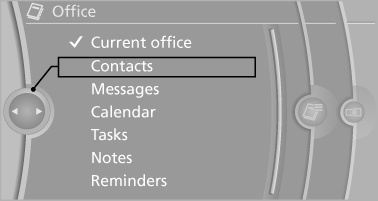
All contacts are listed in alphabetical order. Depending on the number of contacts, an A-Z search is offered.
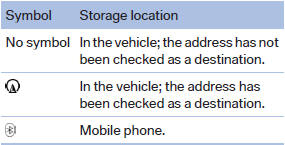
A symbol indicates the storage location of the contacts:
Dialing phone numbers
1. Select the desired contact.
2. Select the phone number.
The connection is established
Editing a contact
1. Select the desired contact.
2. "Edit contact"
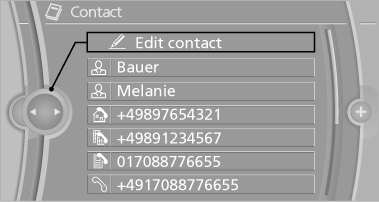
3. Change the entries.
4. "Store contact in vehicle"
When a contact is edited, the changes are not stored on the mobile phone. A copy of the entry is stored in the vehicle.
Selecting the contact as a navigation destination
1. Select the desired contact.
2. Select the address.
When contacts from the mobile phone are
used, the address may need to be matched
to the navigation data contained in the vehicle.
In this case:
Correct the address.
3. "Start guidance" or "Add as another
destination"
Checking the address as a destination
An address that is to be used for destination guidance must match the navigation data contained in the vehicle. The address can be checked for this purpose.
1. Select the desired contact and highlight the
address.
2. Open "Options".
3. "Check as destination"
4. Correct and store the address if necessary.
If the address is corrected and stored, a copy of
it is stored in the vehicle. The address is not
changed on the mobile phone.
See also:
LATCH child restraint fixing system
LATCH: Lower Anchors and Tethers for CHildren.
Coupe: rear seats
The anchor points for the lower LATCH anchors are located behind the labeled
protective caps.
Convertible: rear seats
To inst ...
Interior: driver-oriented cockpit, exclusive ambience.
The driver-oriented cockpit layout familiar from BMW models down the years
and a dynamic forward-surging movement define the design of the interior. The
centre section of the instrument panel - in ...
External devices
General information
External audio and video devices and digital
cameras can be connected to cinch sockets, on the CD/DVD player. Operation
takes place on the external device.
Due to the large n ...