
Video playback
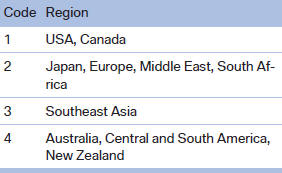
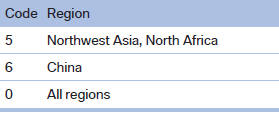
Country codes
Only DVDs with the code of the home region can be played back; also refer to the information on the DVD.
Playback
The video image is displayed on the front Control Display up to a speed of approx. 2 mph/3 km/ h; in some countries, it is only displayed if the parking brake is set or if the automatic transmission is in position P.
DVD video
1. "CD/Multimedia"
2. "CD/DVD"
3. Select a DVD with video content.
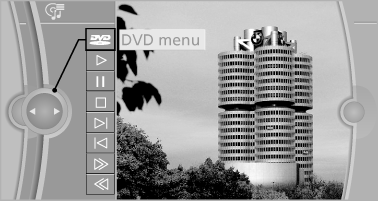
4.  "DVD menu
VCD/SVCD
1. "CD/Multimedia"
2. "CD/DVD"
3. Select a CD with video content.
4.  "Select track"
5. Select the desired track.
Video menu
To open the video menu: turn the controller during playback.
Press the controller when "Back" is displayed.
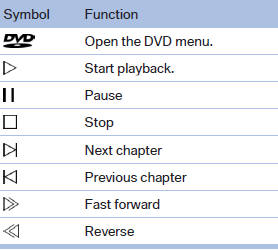
In fast forward/reverse: the speed increases every time the controller is pressed. To stop, start playback.
DVD menu
1. If necessary, turn the controller to open the
video menu.
2.  "DVD menu"
The DVD menu is displayed. The display depends
on the contents of the DVD.
3. To select menu items: move the controller
and press it.
To change to the video menu: turn the controller
and press it.
DVD/VCD settings
For some DVDs, settings can only be made via the DVD menu; refer also to the information on the DVD.
Selecting the language
The languages that are available depend on the DVD.
1. Turn the controller during playback.
2. Open "Options".
3. "Audio/language"
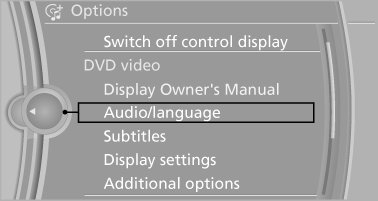
4. Select the desired language.
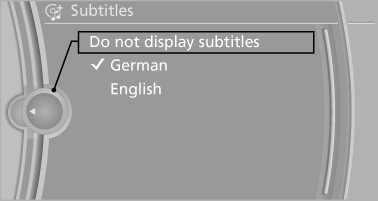
Selecting the subtitles
The subtitles that are available depend on the DVD.
1. Turn the controller during playback.
2. Open "Options".
3. "Subtitles"
4. Select the desired language or "Do not
display subtitles".
Setting the brightness, contrast and color
1. Turn the controller during playback.
2. Open "Options".
3. "Display settings"
4. "Brightness", "Contrast" or "Color"
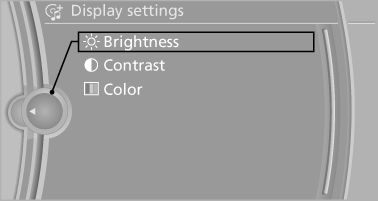
5. Turn the controller until the desired setting is reached and press the controller.
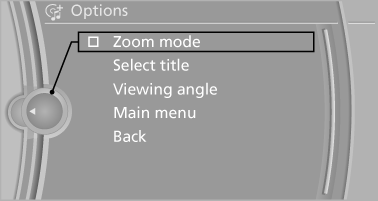
Selecting the zoom
Display the video image on the entire screen.
1. Turn the controller during playback.
2. Open "Options".
3. "Additional options"
4. "Zoom mode"
Selecting a track
DVD video:
1. Turn the controller when the DVD menu is
displayed.
2. Open "Options".
3. "Additional options"
4. "Select title"
5. Select the desired track.
VCD/SVCD:
1.  "Select track"
2. Select the desired track.
Selecting the camera angle
The availability of a different camera angle depends on the DVD and the current DVD track.
1. Turn the controller during playback.
2. Open "Options".
3. "Additional options"
4. "Viewing angle"
5. Select the desired camera angle.
Opening the main menu, back
These functions are not contained on every DVD. Therefore, they may not be available for use.
See also:
Connecting a particular mobile phone
If more than one mobile phone is detected by the
vehicle, the mobile phone at the top of the list is
connected. If a different detected cell phone is
connected with the vehicle. A different mobi ...
The concept
The Check Control system monitors functions
in the vehicle and notifies you of malfunctions in
the monitored systems.
A Check Control message is displayed as a
combination of indicator or warni ...
Malfunction
In the event of a failure or malfunction of the
parking brake, secure the vehicle against rolling
using a wheel chock, for example, when leaving
it. ...