
Destination entry by map
Selecting the destination
1. "Navigation"
2. "Map"
The current position of the vehicle is indicated
on the map.
3.  "Interactive map"
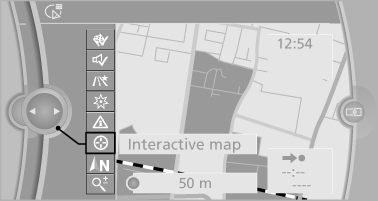
4. Select the destination with crosshairs.
▷ To change the scale: turn the controller.
▷ To shift the map: move the controller in
the required direction.
▷ To shift the map diagonally: move the
controller in the required direction and
turn it.
Specifying the street
If the system does not recognize a street, one of the following is displayed:
▷ The name of a street in the vicinity.
▷ The county.
▷ The coordinates of the destination.
Additional functions
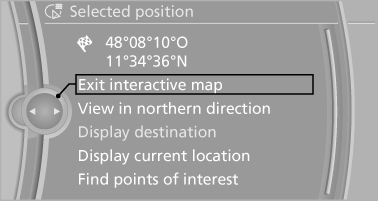
Additional functions are available on the interactive map after the controller is pressed.
▷  Select the symbol.
"Start guidance" or "Add as another
destination"
Add a destination as a further destination
▷ "Exit interactive map": return to the map
view.
▷ "View in northern direction" or "View in
driving direction"
▷ "Display destination": the map section
around the destination is displayed.
▷ "Display current location": the map section
around your current location is displayed.
▷ "Find points of interest": the search for special
destinations is started.
See also:
1990: the third generation - premiere of the BMW 3-Series Coupé and BMW
3-Series Compact, new six-cylinder petrol and turbodiesel engines
1990 saw the introduction of the third-generation 3-Series, the four-door
Sedan taking to the stage on a wave of elegance and new technology. On top of
this, the dimensions of the body and the spa ...
Vehicle care
Car care products
BMW recommends using cleaning and care
products from BMW, since these have been
tested and approved.
Car care and cleaning products
Follow the instructions on the container.
...
Vehicle Overview
Redesigned for 2011, the sixth-generation 5 Series offers a longer wheelbase,
better fuel efficiency and more conventional styling than its predecessor.
Available in 528i, 535i and 550i trims, the ...