
Manual destination entry
General information
The system supports you in entering street names and house numbers by automatically completing the entry and providing entry comparisons.
Stored town/city and street names can be called up quickly.
▷ If the existing entries should not be changed,
the entries for the state/province and town/
city can be skipped.
▷ Destination guidance is started to the town/
city center if no street is entered.
Entering a state/province
1. "Navigation"
2. "Enter address"
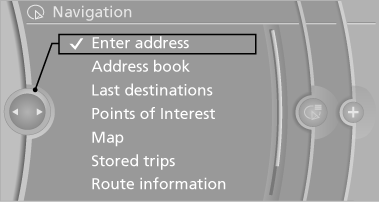
3. Select "State/Province" or the displayed state/province.
Entering a town/city
1. Select "Town/City/Postal Code" or the displayed town/city.
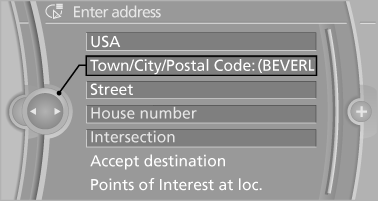
2. Select letters, if necessary.
The list is narrowed down further with each
entry.
3. Move the controller to the right.
4. Select the town/city name from the list.
If there are several towns/cities with the same name:
1. Change to the list of town/city names.
2. Highlight the town/city.
3. Select the town/city.
Entering the postal code
1. Select "Town/City/Postal Code" or the displayed
town/city.
2.  Select the symbol.
3. Select the numbers.
4. Change to the list of postal codes and towns/
cities.
5. Highlight the entry.
6. Selecting an entry.
Entering a street and intersection
1. Select "Street" or the displayed street.
2. Enter a street and intersection in the same
way as you would enter a town/city.
If there are several streets with the same name:
1. Change to the list of street names.
2. Highlight the street.
3. Select the street.
Alternative: enter the street address and house number
1. Select "Street" or the displayed street.
2. Enter the street as you would the town/city.
3. "House number"
4. Select the numbers.
5. Change to the list of house numbers.
6. Select a house number or range of house
numbers.
Street does not exist in the destination city/town
The desired street does not exist in the specified city/town because it belongs to another part of the city/town.
1. "Navigation"
2. "Enter address"
3. Select "Street" or the displayed street.
4. Change to the list of street names.
5. Select "In" the displayed country.
All streets of the selected state/province are offered. The associated town/city is displayed after the street name.
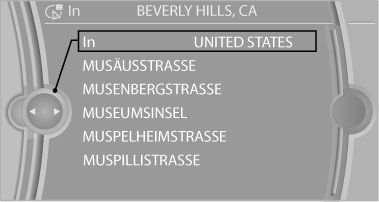
6. Select the letters.
7. Change to the list of street names.
8. Highlight the street.
9. Select the street.
Starting destination guidance after entering the destination
1. "Accept destination"
2. "Start guidance" or "Add as another
destination"
Add a destination as a further destination
See also:
Temperature
Turn the wheel to set the
desired
temperature.
The automatic climate control achieves
this temperature as quickly as
possible, if necessary with the maximum
cooling or heating capacity, an ...
Vehicle equipment
All standard, country-specific and optional
equipment that is offered in the model series is
described in this chapter. Therefore, equipment
is also described that is not available in a vehicle, ...
Symbols
Indicates precautions that must be followed
precisely in order to avoid the possibility of personal
injury and serious damage to the vehicle.
◄ Marks the end of a specific item of inf ...