
Planning a trip with intermediate destinations
New trip
A trip can be planned with several intermediate destinations.
1. "Navigation"
2. "Map"
3. Move the controller to the left if necessary.
4.  "Guidance"
5. "Enter new destination"
6. Select the type of destination entry.
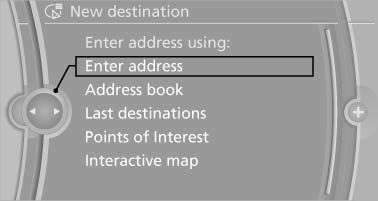
7. Enter the intermediate destination.
8. "Start guidance"
Entering intermediate destinations
For a trip, a max. of 30 intermediate destinations can be entered.
1. "Enter new destination"
2. Select the type of destination entry.
3. Enter the intermediate destination.
4. "Add as another destination"
The intermediate destination is entered in
the destination list and is highlighted.
5. Turn the controller until the intermediate
destination is located in the desired position
in the list.
6. Press the controller.
Starting the trip
1. After all intermediate destinations are entered,
highlight the first destination.
If the second destination, for example, is
highlighted when destination guidance is
started, the first destination is skipped.
2. "Start guidance"
 This symbol marks the active leg of
the
trip.
This symbol marks the active leg of
the
trip.
Store the trip
Up to 30 trips can be stored in the trip list. If necessary, delete existing trips to be able to store new trips.
1. Open "Options".
2. "Store trip"
3. Enter the name.
4. "OK"
Select the stored trip
1. "Navigation"
2. "Stored trips"
3. Select a stored trip.
4. "Start guidance"
Reversing the direction of travel
Intermediate destinations are displayed in reverse order in the list.
1. "Map"
2.  "Guidance"
3. Open "Options".
4. "Reverse order of trip dest."
Intermediate destination options
1. "Map"
2. "Guidance"
3. "Display all trip destinations"
4. Select an intermediate destination.
- "Edit destination"
- "Reposition dest. in the trip": move an intermediate destination to another position in the list.
- "Delete dest. in the trip"
- "Go to next dest. in the trip"
Some options are not available for certain trips.
Delete the stored trip
1. "Stored trips"
2. Highlight the desired trip.
3. Open "Options".
4. "Delete all trips" or "Delete trip"
Open the last trip
1. "Navigation"
2. "Stored trips"
3. "Last trip"
4. "Start guidance"
See also:
Parking lamps
Switch position
: the vehicle lamps light
up on all sides, e.g., for parking.
Do not use the parking lamps for extended periods;
otherwise, the battery may become discharged ...
New contact
General information
A contact can have up to 8 phone numbers,
2 addresses, 3 e-mail addresses and one Internet
address.
1. "Office"
2. "Contacts"
3. "Options" Ope ...
Selecting the destination
1. "Navigation"
2. "Map"
The current position of the vehicle is displayed
on the map.
3. "Interactive
map"
Interactive map
4. Select the destination with cros ...