
Destination entry by map
Selecting the destination
1. "Navigation"
2. "Map"
The current position of the vehicle is indicated
on the map.
3.  "Interactive map"
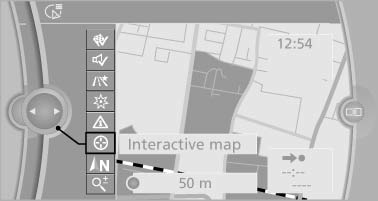
4. Select the destination with crosshairs.
- To change the scale: turn the controller.
- To shift the map: move the controller in the required direction.
- To shift the map diagonally: move the controller in the required direction and turn it.
Specifying the street
If the system does not recognize a street, one of the following is displayed:
- The name of a street in the vicinity.
- The county.
- The coordinates of the destination.
Additional functions
Additional functions are available on the interactive map after the controller is pressed.
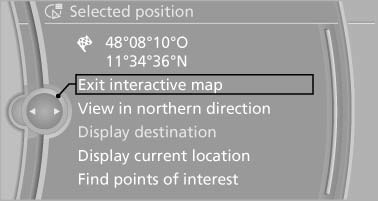
 Select the symbol.
"Start guidance" or "Add as another destination" Add a destination as a further destination.- "Exit interactive map": return to the map view.
- "View in northern direction" or "View in driving direction"
- "Display destination": the map section around the destination is displayed.
- "Display current location": the map section around your current location is displayed.
- "Find points of interest": the search for special destinations is started.
See also:
LATCH child restraint fixingsystem
LATCH: Lower Anchors and Tether for Children.
Note
Manufacturer's information for LATCH
child restraint fixing systems
To mount and use the LATCH child restraint fixing
systems, observe the oper ...
Radio
Your radio is designed for reception of the following stations:
> FM and AM
> HD Radio
> Satellite radio ...
Example: playing back a CD
1. Switch on the Entertainment sound output
if necessary.
2. Press the button on the
steering
wheel.
3. ›C D and multimedia‹
The medium last played is played back.
4. Press the button on t ...