
My contacts
General information
A list of all contacts in the vehicle and mobile phone.
Displaying contacts
1. "Contacts".
2. "My contacts"
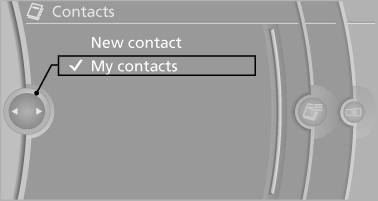
All contacts are listed in alphabetical order. Depending on the number of contacts, an A-Z search is offered.
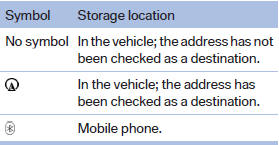
A symbol indicates the storage location of the contacts:
Dialing a phone number
1. Select the desired contact.
2. Select the phone number.
The connection is established.
Editing a contact
1. Select the desired contact.
2. "Edit contact"
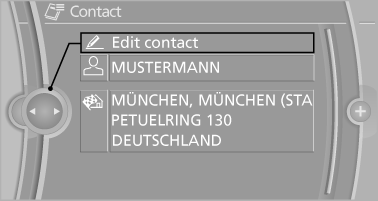
3. Change the entries.
4. Move the controller to the left.
5. "Yes"
If a contact from the mobile phone is edited, the changes are not stored on the mobile phone. A copy of the entry is stored in the vehicle, and only this copy is displayed. Under certain circumstances, a contact entry with the same name is created.
Selecting the contact as a navigation destination
1. Select the desired contact.
2. Select the address.
When contacts from the mobile phone are used, the address may need to be matched to the navigation data contained in the vehicle.
In this case:
Correct the address.
3. "Start guidance" or "Add as another destination"
Checking the address as a destination
An address that is to be used for destination guidance must match the navigation data contained in the vehicle. The address can be checked for this purpose.
1. Select the desired contact and highlight the address.
2. "Options" Open.
3. "Check as destination".
4. Correct and store the address if necessary.
If the address is corrected and stored, a copy of it is stored in the vehicle. The address is not changed on the mobile phone.
Selecting the sorting order of the names
Names can be displayed in a different order.
1. "My contacts".
2. "Options" Open.
3. "Display: last, first name" or "Display: first, last name"
Depending on how the contacts were stored on the mobile phone, the sorting order of the names may differ from the selected sorting order.
Exporting/importing contacts
Contacts can be exported and imported via the Personal Profile.
Deleting contacts
Only contacts that are stored in the vehicle are deleted. The contacts on the mobile phone cannot be deleted.
1. "My contacts".
2. Highlight the contact.
3. "Options" Open.
4. "Delete contact"or "Delete all contacts".
See also:
Safety switch
The safety switch in the driver's door can be
used to prevent children, for example, from
opening and closing the rear windows using the
switches in the rear.
Switching on and off
Press the b ...
Time
The time is displayed at the
bottom
of the instrument cluster.
Setting the time and time format ...
Tire inflation pressures
Information for your safetyIt is not merely the tires' service life, but also driving comfort and, to a
great extent, driving safety that depend on the condition of the tires and the maintenance ...