
New contact
General information
A contact can have up to 8 phone numbers, 2 addresses, 3 e-mail addresses and one Internet address.
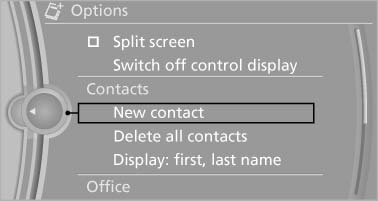
1. "Office"
2. "Contacts"
3. Open "Options".
4. "New contact"
5. The entry fields are still filled with the previous entries: "Delete input fields"
6. Fill in the entry fields: select the symbol next to the entry field.
7. Enter the text and assign the contact type.
8. If the vehicle is equipped with a navigation system: Enter the address. Only addresses contained in the navigation data in the vehicle can be entered. This ensures that destination guidance is possible for all addresses. If necessary, "Accept address".
9. "Store contact in vehicle"
Contact types
Various contact types can be assigned to phone numbers and addresses.
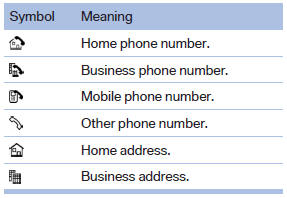
Specifying the home address
A home address can be stored. It appears at the top of the contact list.
1. "Home"
2. Create a contact.
3. "Store contact in vehicle"
See also:
Lumbar support
The curvature of the seat backrest can be adjusted
in such a way that it supports the lumbar
region of the spine. The lower back and the
spine are supported for upright posture.
Press the ...
Socket for OBD OnboardDiagnosis
Position
There is an OBD socket on the driver's side for
checking the primary components in the vehicle
emissions.
Emissions
► The warning lamp lights up:
Emissions are deteriorati ...
Mounting LATCH child restraint fixing systems
1. Mount the child restraint fixing system; refer
to the operating instructions of the system.
2. Ensure that both LATCH anchors are properly
connected. ...