
My contacts
General information
List of all contacts from the vehicle.
Displaying contacts1. "Contacts"
2. "My contacts"
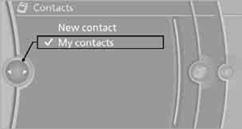
All contacts are listed in alphabetical order. Depending on the number of contacts, an A-Z search is offered.
A symbol indicates the storage location of the contacts:
Editing a contact1. Select the desired contact.
2. "Edit contact"
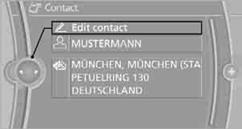
3. Change the entries.
4. Move the controller to the left.
5. "Yes"
Selecting a contact as a destination
1. Select the desired contact.
2. Select address.
3. "Start guidance" or "Add as another destination"
Checking the address as a destination
An address that is to be used in route guidance must correspond to the navigation data stored in the vehicle. The address can be checked to ensure this.
1. Select the desired contact and highlight the address.
2. Open "Options".
3. "Check as destination"
4. Correct and store the address, if necessary.
Selecting name sorting
Names can be displayed in different orders.
1. "My contacts"
2. Open "Options".
3. "Display: last, first name" or "Display: first, last name"
Contacts can be exported and imported using
Personal Profile.
Deleting contacts1. "My contacts"
2. Highlight the contact.
3. Open "Options".
4. "Delete contact" or "Delete all contacts".
See also:
Stowing cargo
► Very heavy cargo: when the rear seat is not
occupied, secure each of the outer safety
belts in the opposite buckle.
► Cover sharp edges and corners.
► Do not stack cargo abov ...
For US owners only
The transmitter and receiver units comply with
part 15 of the FCC/Federal Communication
Commission regulations. Operation is governed
by the following:
FCC ID:
NBG009014A.
Compliance statemen ...
Calling up settings
Do not retrieve the memory setting while
driving
Do not retrieve the memory setting while driving,
as an unexpected seat movement could result
in an accident.◀
Comfort function
1. Ope ...