
Planning a trip with intermediate destinations
New trip
A trip can be planned using intermediate destinations.
1. "Navigation"
2. "Map"
3. Move the controller to the left, if necessary.
4.  "Guidance"
5. "Enter new destination"
6. Select the type of destination entry.
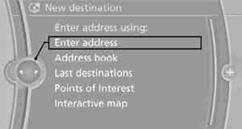
7. Enter the intermediate destination.
8. "Start guidance"
Entering intermediate destinations
A maximum of 30 intermediate destinations can be entered for one trip.
1. "Enter new destination"
2. Select the type of destination entry.
3. Enter the intermediate destination.
4. "Add as another destination"
The intermediate destination is inserted into the destination list and highlighted.
5. Turn the controller until the intermediate destination is at the desired
place in the list.
6. Press the controller.
After entering all intermediate destinations, highlight the first destination and say "Start guidance"
For example if the second destination is highlighted at the start of route guidance, then the first destination is skipped over.
The symbol indicates the active intermediate
destination.
Up to 30 trips can be stored in the trip list. Delete existing trips as necessary to permit you to store new trips.
1. Open "Options".
2. "Store trip"
3. Enter a name.
4. "OK"
The trip is stored in the trip list under the entered name.
Selecting a stored trip1. "Navigation"
2. "Stored trips"
3. Select the desired trip.
4. "Start guidance"
Changing the trip directionIntermediate destinations are displayed in reverse order in the list.
1. "Map"
2.  "Guidance"
3. Open "Options".
4. "Reverse order of trip dest."
Options for intermediate destinations
1. "Map"
2. "Guidance"
3. "Display all trip destinations"
4. Select an intermediate destination.
> "Edit destination"
> "Reposition dest. in the trip": move the intermediate destination within the list.
> "Delete dest. in the trip"
> "Go to next dest. in the trip"
Some options are not possible for some trips.
Deleting a stored trip1. "Navigation"
2. "Stored trips"
3. Select the desired trip.
4. Open "Options".
5. "Delete all trips" or "Delete trip".
1. "Navigation"
2. "Stored trips"
3. "Last trip"
 4. "Start guidance"
See also:
Wheels and tires
Vehicle equipment
All standard, country-specific and optional
equipment that is offered in the model series is
described in this chapter. Therefore, equipment
is also described that is not avai ...
Opening the traffic bulletins
1. "Navigation".
2. "Map".
3. "Traffic Info".
First the traffic bulletins for the calculated route are displayed. The traffic
bulletins are sorted by their distance ...
Calling
Dialing a phone number
1. ›Dial number‹
2. Say the phone number.
3. ›Dial‹
Correcting the phone number
The sequence of digits can be deleted after the
system has repeated the digits.
›Correct ...