
Address book
To create contacts.
Selecting a destination from the address book
1. "Navigation"
2. "Address book"
Contacts with addresses are displayed if these addresses have been checked as destinations.
If the contacts with addresses from the mobile phoneare not displayed, they first need to be checked as destinations, refer to page. 189.
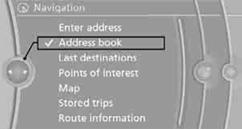
3. Select a contact in the list or if so desired, using the "A-Z search".
4. Select "Business address" or "Home address"
Storing a destination in the address book
Store the destination in the address book after
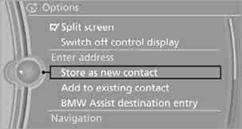
3. Select an existing contact, if available.
4. "Business address" or "Home address"
5. "Last name" and "First name" if you wish.
6. "Store in vehicle"
Your current position can be stored in the address book.
1. "Navigation"
2. Open "Options".
3. "Store position as contact" or "Add position to contact".
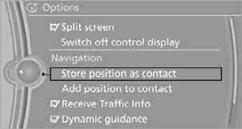
4. Depending on the selection, select an existing contact from the list
or the type of address and enter the last and first name.
5. "Store in vehicle"
1. "Navigation"
2. "Address book"
3. Highlight the entry.
4. Open "Options".
5. "Edit in Contacts" or "Delete entry".
The home address must be created. Specifying a home address.
1. "Navigation"
2. "Address book"
3. "Home"
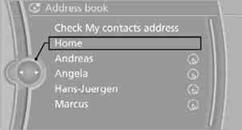
4. "Start guidance"
See also:
Removing
The head restraints cannot be removed. ...
Service contract
▷ After your contract with BMW Assist has expired,
the BMW Assist system can be deactivated
by the service center without you
having to visit a workshop.
After deactivation, an Emergency ...
Roof-mounted luggage rack
Note
Roof racks are available as special accessories.
Attachment
Follow the installation instructions of the roof
rack.
Roof drip rail with flaps
The anchorage points are located in the roof ...