
Planning a trip with intermediatedestinations
New trip
1. "Navigation"
2. "Map"
3. Move the controller to the left if necessary.
4.  "Guidance"
5. "Enter new destination"
6. Select the type of destination entry.
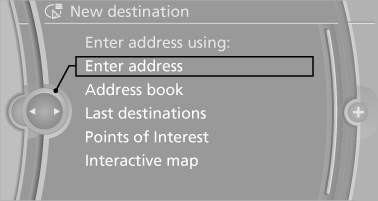
7. Enter the intermediate destination.
8. "Start guidance"
Entering intermediate destinations
A maximum of 30 intermediate destinations can be entered for one trip.
1. "Enter new destination"
2. Select the type of destination entry.
3. Enter the intermediate destination.
4. "Add as another destination"
The intermediate destination is entered in the destination list and is highlighted.
5. Turn the controller until the intermediate
destination is located in the desired position
in the list.
6. Press the controller.
Starting the trip
1. After all intermediate destinations are entered, highlight the first destination.
If the second destination, for example, is highlighted when destination guidance is started, the first destination is skipped.
2. "Start guidance"
This symbol marks the active leg of the trip.
With the Professional navigation system: storing a trip
Up to 30 trips can be stored in the trip list. If necessary, delete existing trips to be able to store new trips.
1. Open "Options".
2. "Store trip"
3. Enter the name.
4. "OK"
With the Professional navigation system: selecting a stored trip
1. "Navigation"
2. "Stored trips"
3. Select a stored trip.
4. "Start guidance"
Reversing the direction of travel
Intermediate destinations are displayed in reverse order in the list.
1. "Map"
2. "Guidance"
3. Open "Options".
4. "Reverse order of trip dest."
Intermediate destination options
1. "Map"
2. "Guidance"
3. "Display all trip destinations"
4. Select an intermediate destination.
► "Edit destination"
► "Reposition dest. in the trip": move an
intermediate destination to another position
in the list.
► "Delete dest. in the trip"
► "Go to next dest. in the trip
Some options are not available for certain trips.
With the Professional navigation system: deleting a stored trip
1. "Stored trips"
2. Highlight the desired trip.
3. Open "Options".
4. "Delete all trips" or "Delete trip"
With the Professional navigation system: calling up the last trip
1. "Navigation"
2. "Stored trips"
3. "Last trip"
4. "Start guidance"
See also:
BMW Maintenance System
The maintenance system directs you to required
maintenance measures and thereby supports
you in maintaining road safety and the operational
reliability of the vehicle. ...
2013 BMW 6 Series Gran Coupe: First Look
Competes with: Mercedes-Benz CLS-Class, Audi A7
Looks like: A more animated 5 Series ... with a 7 Series price tag
Drivetrain: 315-hp, twin-turbocharged 3.0-liter inline-six-cylinder; 445-hp,
tw ...
General information
BMW Assist provides you with certain services,
e.g., transmission of the position data of your
vehicle to the BMW Assist Response Center if
an Emergency Request has been initiated.
Many BMW Ass ...