
Displaying contacts
General information
1. "Office".
2. "Contacts"
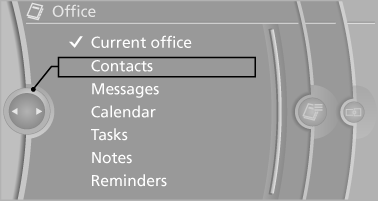
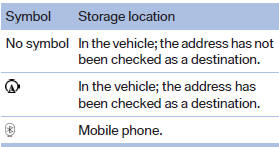
All contacts are listed in alphabetical order. Depending on the number of contacts, an A-Z search is offered.
A symbol indicates the storage location of the contacts:
Dialing phone numbers
1. Select the desired contact.
2. Select the phone number.
The connection is established.
Editing a contact
1. Select the desired contact.
2. "Edit contact"
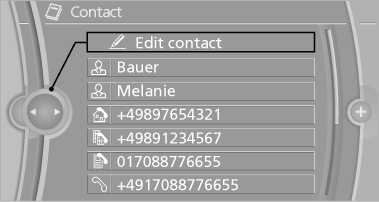
3. Change the entries.
4. "Store contact in vehicle"
When a contact is edited, the changes are not stored on the mobile phone. A copy of the entry is stored in the vehicle.
Selecting the contact as a navigation destination
1. Select the desired contact.
2. Select the address.
When contacts from the mobile phone are used, the address may need to be matched to the navigation data contained in the vehicle.
In this case:
Correct the address.
3. "Start guidance" or "Add as another destination"
Checking the address as a destination
An address that is to be used for destination guidance must match the navigation data contained in the vehicle. The address can be checked for this purpose.
1. Select the desired contact and highlight the address.
2. Open "Options".
3. "Check as destination"
4. Correct and store the address if necessary.
If the address is corrected and stored, a copy of it is stored in the vehicle. The address is not changed on the mobile phone.
See also:
Compact wheel
Safety precautions in the event of a flat tire
or wheel change
Park the vehicle as far as possible from passing
traffic and on solid ground. Switch on the hazard
warning system.
Set the park ...
The concept
This system projects important information into
the driver's field of vision, e.g., the speed.
In this way, the driver can get information without
averting his or her eyes from the road. ...
Headlamps
▷ Do not rub dry and do not use abrasive or
caustic cleansers.
▷ Soak areas that have been soiled e.g. due to
insects, with shampoo and wash off with
water.
▷ Thaw ice with d ...