
Display
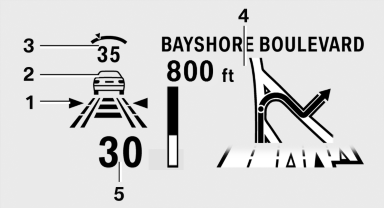
Display
1 Lane departure warning
2 Active Cruise Control
3 Desired speed
4 Navigation system
5 Speed
The collision warning, Night Vision pedestrian warning, or Check Control messages are displayed briefly if needed.
Selecting displays in the Head-up Display
1. "Settings"
2. "Head-up display"
3. "Displayed information"
4. Select the desired displays in the Head-up
Display.
The settings are stored for the remote control currently in use.
Setting the brightness
The brightness is automatically adjusted to the ambient light.
The basic setting can be adjusted manually.
1. "Settings"
2. "Head-up display"
3. "Brightness"
4. Turn the controller.
The brightness is adjusted.
When the low beams are switched on, the brightness of the Head-up Display can be additionally influenced using the instrument lighting.
The setting is stored for the remote control currently in use.
Adjusting the height
1. "Settings"
2. "Head-up display"
3. "Height"
4. Turn the controller.
The height is adjusted.
The setting is stored for the remote control currently in use.
Setting the rotation
1. "Settings"
2. "Head-up display"
3. "Rotation"
4. Turn the controller.
Rotation is set.
The setting is stored for the remote control currently in use.
See also:
The concept
The vehicle can be accessed without activating
the remote control.
All you need to do is to have the remote control
with you, e.g., in your jacket pocket.
The vehicle automatically detects the r ...
Drive-off assistant
This system supports driving away on gradients.
The parking brake is not required.
1. Hold the vehicle in place with the foot brake.
2. Release the foot brake and drive away without
delay.
Afte ...
Display on the Control Display
Switching on the backup camera via
iDrive
With PDC activated:
"Rear view camera"
The backup camera image is displayed. The setting
is stored for the remote control currently in
use ...