
Displaying contacts
General information
1. "Office"
2. "Contacts"
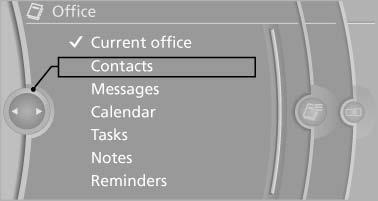
All contacts are listed in alphabetical order. Depending on the number of contacts, an A-Z search is offered.
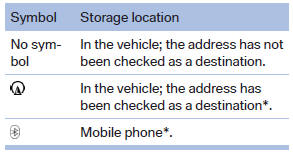
A symbol indicates the storage location of the contacts.
Dialing phone numbers
1. Select the desired contact.
2. Select the phone number.
The connection is established.
Editing a contact
1. Select the desired contact.
2. "Edit contact"
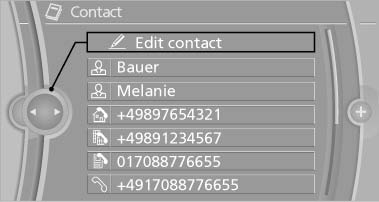
3. Change the entries.
4. "Store contact in vehicle"
When a contact is edited, the changes are not stored on the mobile phone. A copy of the entry is stored in the vehicle.
Selecting the contact as a navigation destination
1. Select the desired contact.
2. Select the address.
When contacts from the mobile phone are used, the address may need to be matched to the navigation data contained in the vehicle.
In this case:
Correct the address.
3. "Start guidance" or "Add as another destination"
Checking the address as a destination
An address that is to be used for destination guidance must match the navigation data contained in the vehicle. The address can be checked for this purpose.
1. Select the desired contact and highlight the
address.
2. Open "Options".
3. "Check as destination"
4. Correct and store the address if necessary.
If the address is corrected and stored, a copy of it is stored in the vehicle. The address is not changed on the mobile phone.
See also:
Entertainment
The chapter helps assure your enjoyment when
receiving radio and television stations and playing
CDs, DVDs and tracks from the music collection. ...
General information
Do not adjust the seat while
driving
Do not adjust the driver's seat while driving,
or the seat could respond with unexpected
movement and the ensuing loss of vehicle control
could lead to a ...
Dual-mass flywheel with centrifugal pendulum absorber
In all road speed ranges that are relevant in everyday driving, the engineers
have achieved reductions in engine speed which have noticeable benefits for fuel
consumption. For example when cruisin ...