
Operating principle
With the ignition at radio readiness or beyond, , the following message is displayed on the Control Display:
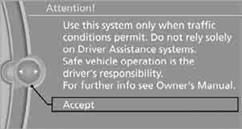
To hide the message: Press the controller.
The main menu is displayed.
The message is automatically hidden after approx. 10 seconds.
Opening the main menu
Press the  button.
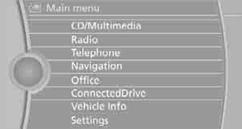
The main menu is displayed.
All iDrive functions can be called up via the main menu.
Selecting a menu item
The menu items shown in white can be selected.
1. Turn the controller until the desired menu item is highlighted.
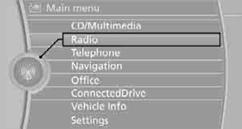
2. Press the controller.
Menu items in the Owner's Manual
In the Owner's Manual, the menu items that should be selected are depicted in quotation marks, e.g. "Settings".
Changing between panels
After a menu item is selected, e.g. "Radio", a new panel is displayed. Panels can overlap.
> Move the controller to the left.
The current panel is closed and the previous panel is displayed.
Pressing the BACK button reopens the previous panel. This does not close the current panel.
> Move the controller to the right.
A new panel is opened and laid over it.
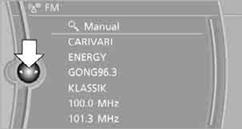
White arrows pointing to the left or right indicate that additional panels can be opened.
View of an opened menu
When you open a menu, generally the panel last selected in this menu is displayed. To display the first panel of the menu:
> Move the controller to the left repeatedly until the first panel is displayed.
> Press the menu's button twice on the controller.
Open the Options menu
Press the  button.
The "Options" menu is displayed.
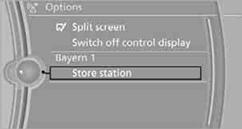
Another possibility: move the controller to the right repeatedly until the "Options" menu appears.
Options menu
The "Options" menu is composed of different areas:
> Screen settings, e.g. "Split screen". The region remains unchanged.
> Control options for the selected main menu, e.g. "Radio".
> Other control options for the selected menu, e.g. "Store station".
Adjusting settings
1. Select a field.
2. Turn the controller until the desired setting is displayed.
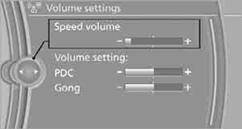
3. Press the controller to confirm the setting.
Activating/deactivating functions
Some menu items are preceded by a check box. It indicates whether the function is activated or deactivated. Selecting the menu item activates or deactivates the function.
 The function is activated.
 The function is deactivated.
See also:
Alternative: enter the street address
and house number
1. Select "Street" or the displayed street.
2. Enter the street as you would the town/city.
3. "House number"
4. Select the numbers.
5. Change to the list of house numbers.
6. ...
Hiding Check Control messages
Press the computer button on the turn signal
lever.
▷ Some Check Control messages are displayed
continuously and are not cleared until
the malfunction is eliminated. If several
malfun ...
CD/multimedia
CD/DVD
When the same audio source (front CD/DVD
player, rear CD/DVD player, DVD changer) is selected
in the front and rear, the same material is
played.
Operation is the same as for the front ...