
Video playback
Country codes
Only DVDs with the code of the home region can be played back; also refer to the information on your DVD.
Starting playbackFor your own safety, the video image is only displayed up to approx. 2 mph/3 km/h and in some market-specific versions, only with the parking brake engaged or the selector lever of the automatic transmission is in the park position.
DVD video
1. "CD/Multimedia"
2. "CD/DVD"
3. Select a DVD with video content.
4.  "DVD menu"
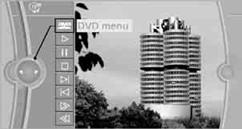
5. Start the DVD via the DVD menu.
VCD/SVCD
1. "CD/Multimedia"
2. "CD/DVD"
3. Select a CD/DVD with video content.
4.  "Select track"
5. Select the desired track. The CD/DVD is started.
To open the Video menu:
1. Turn the controller during playback.
2. Press the controller when "Back" is displayed.
The Video menu is displayed:
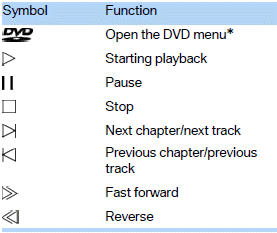
In fast forward/reverse: the speed increases every time the controller is pressed. To stop, start playback.
DVD menu1. If necessary, turn the controller to open the
Video menu.
2. "DVD menu"
The DVD menu is displayed. The display depends on the contents of the DVD.
> To select menu items: move and press the controller.
> To change to the Video menu: turn the controller and select "Back".
For some DVDs, settings can only be made via the DVD menu; also refer to the information on your DVD.
Language
1. Turn the controller during playback.
2. Open "Options".
3. "Audio/language"
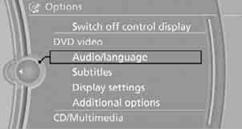
4. Select the desired language.
The languages that are available depend on the
DVD.
Subtitles
Subtitles can be selected if they are contained on the DVD.
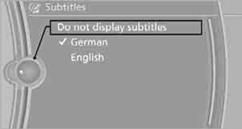
1. Turn the controller during playback.
2. Open "Options".
3. "Subtitles"
4. Select the desired language or "Do not display subtitles".
Brightness, contrast, color
1. Turn the controller during playback.
2. Open "Options".
3. "Display settings"
4. "Brightness", "Contrast" or "Color"
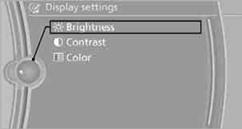
5. Turn the controller until the desired setting is displayed, and then press the controller.
Zoom
Display the video image on the full screen.
1. Turn the controller during playback.
2. Open "Options".
3. "Additional options"
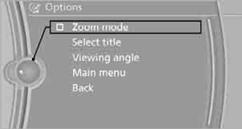
4. "Zoom mode"
Selecting track
DVD video:
1. Turn the controller when the DVD menu is displayed.
2. Open "Options".
3. "Additional options"
4. "Select title"
5. Select the desired track. VCD/SVCD:
1.  "Select track"
2. Select the desired track.
Camera angle
The camera angle depends on the DVD.
1. Turn the controller during playback.
2. Open "Options".
3. "Additional options"
4. "Viewing angle"
5. Select the desired camera angle.
Opening the main menu, back
These functions are not contained on every DVD. Therefore, they may not be available for use.
See also:
Short commands for the voice activation system
For instructions on the voice activation system.
Having the possible spoken commands read aloud: {Voice commands}
The following short commands are for vehicles with the voice activation system.
Th ...
TeleService Report
Transmits technical data that is evaluated for the
ongoing development of BMW products from
your vehicle to BMW in regular intervals if necessary.
TeleService Report is activated in vehicles that ...
Electrically adjustable seats
At a glance
1 Seat and mirror memory
2 Backrest width
3 Lumbar support
4 Backrest tilt
5 Forward/backward, height, seat tilt
Note
The seat setting for the driver's seat is stored for
the re ...