
Pairing and connecting
 Pairing the mobile phone
To avoid becoming distracted and posing
an unnecessary hazard both to your own vehicle's
occupants and to other road users, only
pair the mobile phone while the vehicle is stationary.◄
1. "Telephone"
2. "Bluetooth® (phone)"
3. "Add new phone"
The Bluetooth name of the vehicle is displayed.
4. To perform additional steps on the mobile phone, refer to the mobile phone operating instructions: e.g. search for or connect the Bluetooth device or a new device.
The Bluetooth name of the vehicle appears on the mobile phone display.
5. Select the Bluetooth name of the vehicle on
the mobile phone display.
6. You are prompted by the iDrive or mobile
phone to enter the same Bluetooth passkey.
Enter the passkey and confirm.
Or
Compare the control number in the display
of the vehicle to the control number in the
display of the mobile phone. Confirm the
control number in the mobile phone and in
the vehicle.
"OK"
7. Select the functions for which the mobile
phone is to be used.
8. "OK"
If the pairing was successful, the mobile phone
appears at the top of the list of mobile phones.
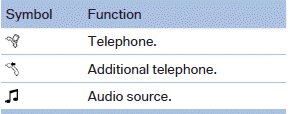
The functions supported by the mobile phone and audio device are displayed as symbols when paired.
White symbol: the function is active.
Gray symbol: the function is inactive.
Four mobile phones can be paired with the vehicle at once. Up to three mobile phones can be connected with the vehicle at once.
If pairing was unsuccessful: What to do if..., refer to page 207.
See also:
Front airbags
Front airbags help protect the driver and front
passenger by responding to frontal impacts in
which safety belts alone cannot provide adequate
restraint. ...
Switching the high beams on and off manually
Switching the high beams on and off manually
▷ High beams on, arrow 1.
▷ High beams off/headlamp flasher, arrow 2.
The High-beam Assistant can be switched off
when manually adjustin ...
Overview, instrument cluster
1 Fuel gauge
2 Speedometer
3 Indicator/warning lamps
4 Tachometer
5 Engine oil temperature
6 Electronic displays
7 Display/reset miles ...