
Address book
Selecting a destination from the address book
1. "Navigation"
2. "Address book"
Contacts with addresses are displayed if these have been checked as destinations from among the Contacts.
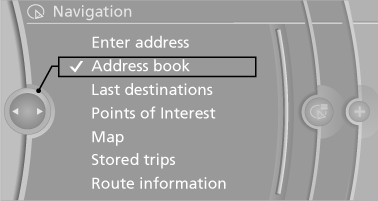
3. Select a contact in the list or, if desired, with
"A-Z search".
4. If necessary, "Business address" or "Home
address"
Storing the destination in the address book
After entering the destination, store the destination in the address book.
1. "Navigation"
2. "Map"
3.  "Guidance"
4. Open "Options".
5. "Store as new contact" or "Add to existing
contact"
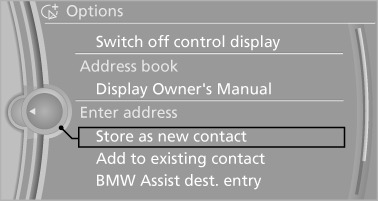
6. Select an existing contact, if available.
7. "Business address" or "Home address"
8. Enter "Last name" and, if applicable, "First
name".
9. "Store in vehicle"
Storing the position
The current position can be stored in the address book.
1. "Navigation"
2. Open "Options".
3. "Store position as contact" or "Add position
to contact"
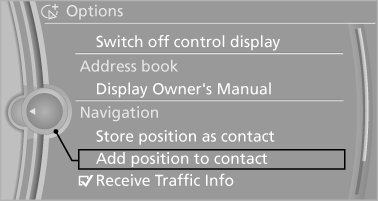
4. Depending on the selection, choose an existing
contact from the list. Select the type
of address and enter the first and last names.
5. "Store in vehicle"
Editing or deleting an address
1. "Navigation"
2. "Address book"
3. Highlight the entry.
4. Open "Options".
5. "Edit in Contacts" or "Delete entry"
Using the home address as the destination
The home address must be stored.
1. "Navigation"
2. "Address book"
3. "Home"
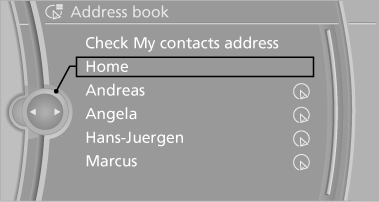
4. "Start guidance"
See also:
Display
Instrument cluster
Instrument cluster
Instrument cluster with enhanced
features
Instrument cluster with enhanced features ...
Ski bag
Capacity
The ski bag can be used to transport up to four
pairs of skis with a length of up to 6 ft/2.10 m or,
depending on the binding, up to two snowboards
with a length of up to 5 ft/1.60 m.
...
Active Protection - preventative occupant protection
The Active Protection safety package is making its debut in the new BMW
3-Series Sedan under the banner of BMW ConnectedDrive. This assistance system is
activated shortly after the driver pulls aw ...