
Address book
Selecting a destination from the address book
1. "Navigation".
2. "Address book".
Contacts with addresses are displayed if
these have been checked as destinations.
If the mobile phone does not display the
contacts with addresses, they must first be
checked as a destination.
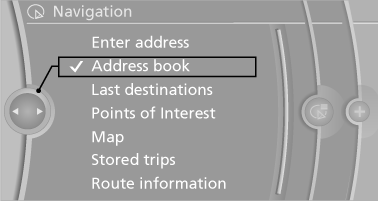
3. Select a contact in the list or, if desired, with
"A-Z search".
4. "Business address" or "Home address"
Storing the destination in the address book
After entering the destination, store the destination in the address book.
1. "Navigation"
2. "Map"
3.  "Guidance"
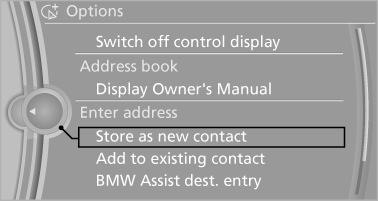
4. "Options" Open.
5. "Store as new contact" or "Add to existing
contact"
6. Select an existing contact, if available.
7. "Business address" or "Home address"
8. Enter "Last name" and, if necessary, "First
name".
9. "Store in vehicle"
Storing the position
The current position can be stored in the address book.
1. "Navigation".
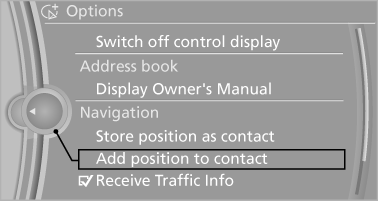
2. "Options" Open.
3. "Store position as contact" or "Add position
to contact"
4. Depending on the selection, choose an existing
contact from the list. Select the type
of address and enter the first and last names.
5. "Store in vehicle"
Editing or deleting an address
1. "Navigation"
2. "Address book"
3. Highlight the entry.
4. "Options" Open.
5. "Edit in Contacts" or "Delete entry"
Using the home address as the destination
The home address must be stored. Specify the home address.
1. "Navigation"
2. "Address book"
3. "Home"
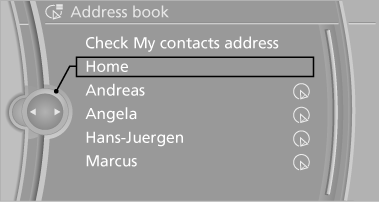
4. "Start guidance"
See also:
Vehicle equipment
All standard, country-specific and optional
equipment that is offered in the model series is
described in this chapter. Therefore, equipment
is also described that is not available in a vehicle, ...
Filtering traffic bulletins
You can set which traffic bulletins appear on the
map.
1. "Navigation"
2. "Map"
3. Open "Options".
4. "Traffic Info categories"
5. Select the desired ca ...
Loading
Overloading the vehicle
To avoid exceeding the approved carrying
capacity of the tires, never overload the vehicle.
Overloading can lead to overheating and increases
the rate at which damage d ...