
Video playback
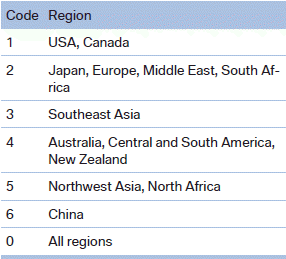
Country codes
Only DVDs with the code of the home region can be played back; also refer to the information on the DVD.
Playback
The video image is displayed on the front Control Display up to a speed of approx. 2 mph/3 km/h; in some countries, it is only displayed if the parking brake is set or if the automatic transmission is in position P.
DVD video
1. "CD/Multimedia"
2. "CD/DVD"
3. Select a DVD with video content.
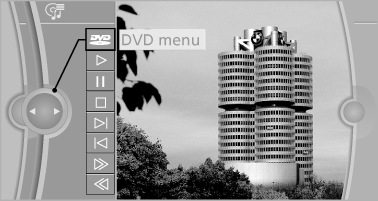
4.  "DVD menu"
VCD/SVCD
1. "CD/Multimedia"
2. "CD/DVD"
3. Select a CD with video content.
4. "Select track"
5. Select the desired track.
Video menu
To open the video menu: turn the controller during playback.
Press the controller when "Back" is displayed.
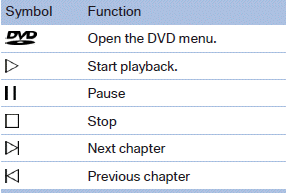
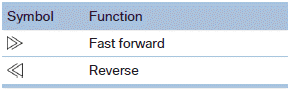
In fast forward/reverse: the speed increases every time the controller is pressed. To stop, start playback.
DVD menu
1. If necessary, turn the controller to open the
video menu.
2.  "DVD menu"
The DVD menu is displayed. The display depends
on the contents of the DVD.
3. To select menu items: move the controller and press it.
To change to the video menu: turn the controller and press it.
DVD/VCD settings
For some DVDs, settings can only be made via the DVD menu; refer also to the information on the DVD.
Selecting the language
The languages that are available depend on the DVD.
1. Turn the controller during playback.
2. Open "Options".
3. "Audio/language"
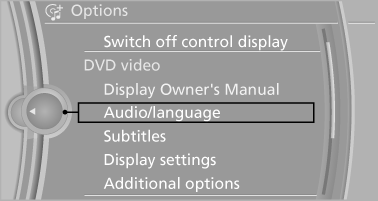
4. Select the desired language.
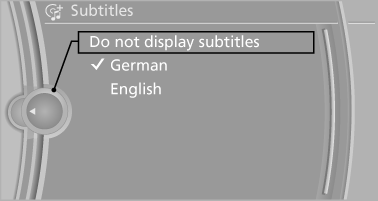
Selecting the subtitles
The subtitles that are available depend on the DVD.
1. Turn the controller during playback.
2. Open "Options".
3. "Subtitles"
4. Select the desired language or "Do not
display subtitles".
Setting the brightness, contrast and color
1. Turn the controller during playback.
2. Open "Options".
3. "Display settings"
4. "Brightness", "Contrast" or "Color"
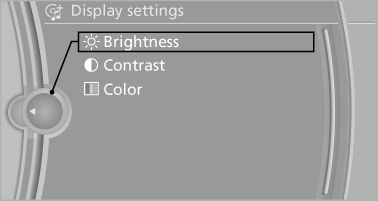
5. Turn the controller until the desired setting is reached and press the controller.
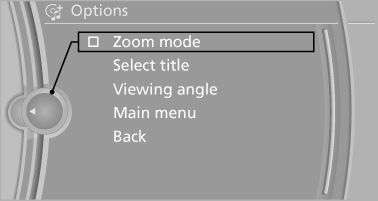
Selecting the zoom
Display the video image on the entire screen.
1. Turn the controller during playback.
2. Open "Options".
3. "Additional options"
4. "Zoom mode"
Selecting a track
DVD video:
1. Turn the controller when the DVD menu is
displayed.
2. Open "Options".
3. "Additional options"
4. "Select title"
5. Select the desired track.
VCD/SVCD:
1.  "Select track"
2. Select the desired track.
Selecting the camera angle
The availability of a different camera angle depends on the DVD and the current DVD track.
1. Turn the controller during playback.
2. Open "Options".
3. "Additional options"
4. "Viewing angle"
5. Select the desired camera angle.
Opening the main menu, back
These functions are not contained on every DVD. Therefore, they may not be available for use.
See also:
Controls on the interior rearview mirror
► LED, arrow 1.
► Buttons, arrow 2.
► The hand-held transmitter, arrow 3, is required
for programming. ...
A new interior
The new BMW 7-Series comes with one of the most luxurious interiors of any
premium car. In addition to a new iDrive controller and larger 10.2-inch screen,
owners will be able to programme frequen ...
Rear window defroster
Press the button.
The rear window defroster switches off
automatically after a certain period of time.
Depending on the vehicle equipment, upper
wires are used as an antenna and are not part of ...