
Contacts
Note
If equipped with full mobile phone preparation package.
At a glance
Contacts can be created and edited. The contacts from the mobile phone are displayed as well if this function is supported by the mobile phone. Addresses can be adopted as destinations for navigation and the phone numbers can be dialed.
Displaying contacts
General information
1. "Office"
2. "Contacts"
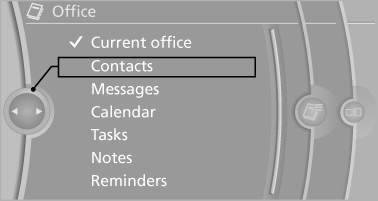
All contacts are listed in alphabetical order. Depending on the number of contacts, an A-Z search is offered.
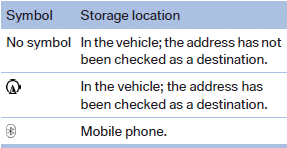
A symbol indicates the storage location of the contacts:
Dialing phone numbers
1. Select the desired contact.
2. Select the phone number.
The connection is established.
Editing a contact
1. Select the desired contact.
2. "Edit contact"
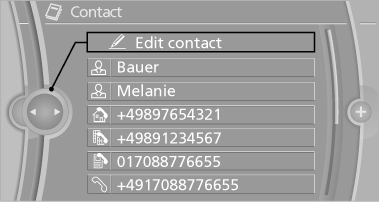
3. Change the entries.
4. "Store contact in vehicle"
When a contact is edited, the changes are not stored on the mobile phone. A copy of the entry is stored in the vehicle.
Selecting the contact as a navigation destination
1. Select the desired contact.
2. Select the address.
When contacts from the mobile phone are used, the address may need to be matched to the navigation data contained in the vehicle.
In this case:
Correct the address.
3. "Start guidance" or "Add as another destination"
Checking the address as a destination
An address that is to be used for destination guidance must match the navigation data contained in the vehicle. The address can be checked for this purpose.
1. Select the desired contact and highlight the
address.
2. Open "Options".
3. "Check as destination"
4. Correct and store the address if necessary.
If the address is corrected and stored, a copy of it is stored in the vehicle. The address is not changed on the mobile phone.
New contact
General information
A contact can have up to 8 phone numbers, 2 addresses, 3 e-mail addresses and one Internet address.
1. "Office"
2. "Contacts"
3. "Options" Open.
4. "New contact"
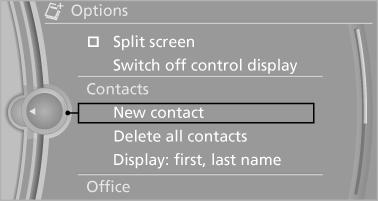
5. The entry fields are still filled with the previous
entries: "Delete input fields"
6. Fill in the entry fields: select the symbol next
to the entry field.
7. Enter the text and assign the contact type.
8. In the navigation system: enter address.
Only addresses contained in the navigation data in the vehicle can be entered. This ensures that destination guidance is possible for all addresses.
If necessary, "Accept address".
9. "Store contact in vehicle"
Contact types
Various contact types can be assigned to phone numbers and addresses.
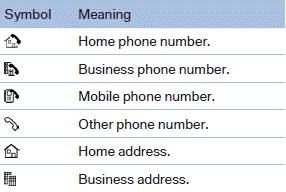
Specifying the home address
A home address can be stored. It appears at the top of the contact list.
1. "Home"
2. Create a contact.
3. "Store contact in vehicle"
Selecting the sorting order of the names
Names can be displayed in a different order.
1. "Office"
2. "Contacts"
3. Open "Options".
4. "Display: last, first name" or "Display: first,
last name"
Depending on how the contacts were stored on
the mobile phone, the sorting order of the names
may differ from the selected sorting order.
Show contact pictures
Pictures stored with the contacts are stored in the vehicle when the mobile phone is connected to the vehicle. The number of transmitted pictures depends on the mobile phone. The mobile phone must support this function.
1. "Telephone"
2. "Bluetooth® (phone)"
3. "Options"
4. "Configure Bluetooth®"
5. "Show images"
Display of all contact pictures is activated or deactivated.
Exporting/importing contacts
Contacts can be exported and imported via the Personal Profile. The contacts stored in the vehicle are exported, but not those from the mobile phone.
Deleting contacts
Only contacts that are stored in the vehicle are deleted. The contacts on the mobile phone cannot be deleted.
1. "Office"
2. "Contacts"
3. Highlight the contact.
4. Open "Options".
5. "Delete contact"or "Delete all contacts".
6. If necessary "Yes"
See also:
Display
Night Vision with pedestrian detection is not
available on the rear screen*.
Settings via iDrive
With Night Vision switched on:
1. Activate Night Vision with pedestrian detection.
2. Press the c ...
Coupe: glass roof, electric
To prevent injuries, watch the glass roof while
closing it.
Take the remote control with you when you leave the car; otherwise, children
could operate the roof and possibly injure themselves.
...
ECO PRO
Consistent tuning to minimize fuel consumption
for maximum range with maximum driving stabilization.
Comfort functions and the engine controller are
adjusted.
The program can be configured to in ...